
Installing and using the browser extension
To use features such as saving login data from the browser or filling in passwords automatically, you need the Password Manager's browser extension in the browser you use.
To install the extension, click "Help" → "Install Browser extensions..." in the Password Manager's menu bar.
In the dialog that appears, select the browser you want to use and click "Finish installation".
You are taken to the browser vendor's extension store, where you can install the browser extension directly.
After installation, you will find this icon at the top right of your browser (example: Edge).
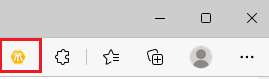
Clicking this icon opens a menu. If the Password Manager is not running or no keychain is open, the menu says so, and you can start the Password Manager via "Open Password Manager".
The first time you open it, the extension reports: "This browser is not connected to Steganos Password Manager yet." Click "Connect". The extension and the Password Manager now show the same code. Only confirm the question "Connect this browser extension to Steganos Password Manager?" in the Password Manager if both codes match. Only then does the extension fill in forms and save login data.
"Fill in form now" fills in your login data on the current website, if any is available. If there are entries for the current website, they are listed here. If there are several, you can choose which one to fill in.
"Save filled out form data" transfers login information you entered in the browser to the Password Manager and creates a new entry for it.
"Start Account Assistant" starts the assistant for creating new login data.
"Show Password Manager" brings the Password Manager window to the front.
"Save & close keychain" saves and closes your keychain.
On the "Bookmarks" tab at the top you find the bookmarks stored in the Password Manager, and under "Pinned entries" your pinned entries with a web address. Click an entry to open the website.
Clicking "Add to Bookmarks" saves the website you are currently viewing as a bookmark in the Password Manager.
Clicking the gear icon opens the browser extension's settings.
If you don't want stored login data to be filled in as soon as a website opens, turn off the "Fill in forms automatically" switch.
If you don't want new or changed login data to be transferred from the browser to your Password Manager automatically, turn off the "Update login data" switch.
The browser extension also shows a small keychain icon in every input field it recognises as part of a login.
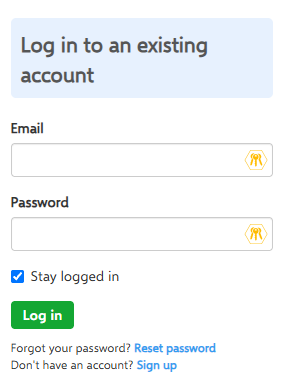
You can use it as well to fill in a form for which login data exists, start the Account Assistant to create a login automatically, transfer data you have already entered to the Password Manager, or simply generate a password quickly.
Google Chrome, Microsoft Edge and Mozilla Firefox are supported. For Steganos Password Manager on the Mac there is also an extension for Safari, which is installed with the Mac app.